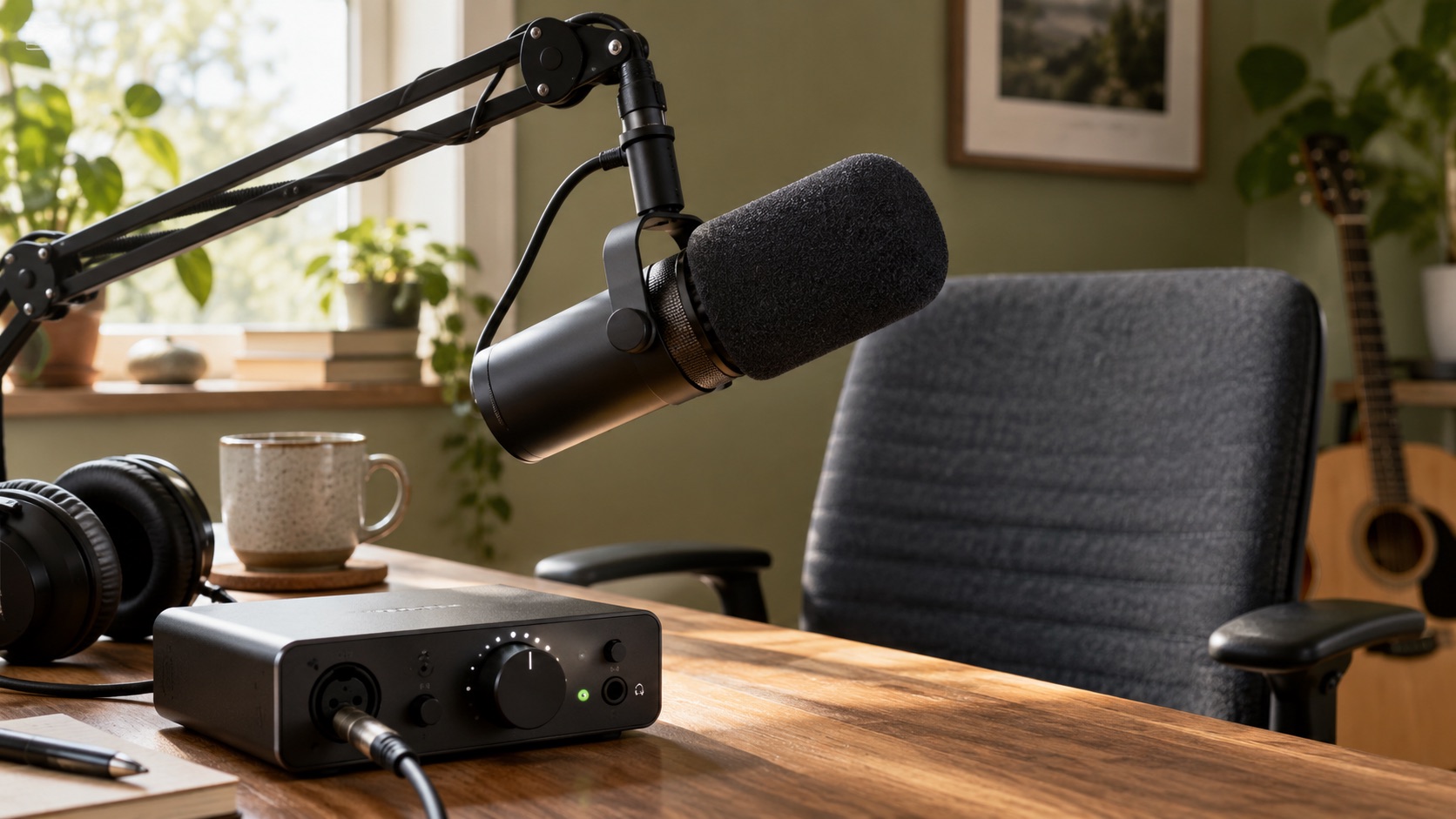
Why the interface is not always the culprit
Latency is the gap between a sound entering your system and you hearing it back. A new interface feels like a clean answer, but Focusrite's support material describes monitoring latency as the combined result of software, plugins, hardware and buffers [S1]. New hardware replaces only one of those stages. If the delay comes from a plugin chain or a driver setting, the expensive box may change little.
One community anecdote shows the pattern. In an r/ableton thread, a user weighing new hardware was running MME/DirectX and could not change the ASIO buffer in the DAW [R1]. Only a search excerpt of that post is available here, so its outcome is unknown. It still illustrates why driver settings deserve a look before any purchase.
- Treat latency as a chain of stages, not a single spec.
- Write down current settings before changing anything.
- Change one variable at a time.
Step 1: Identify monitoring delay versus recorded alignment
Two different problems both get called latency. Monitoring delay is what you hear in headphones while playing, a slap-back or rubbery feel. Recorded alignment concerns the take itself: after you stop, the new part sits slightly off the grid or against earlier tracks. The fixes overlap but are not identical.
Check monitoring by clapping near the mic and listening for a gap. Alignment is harder to judge by ear, because a player can consistently rush or drag against a click, and that performance bias looks just like a system offset. To measure the system itself, use the loopback or driver compensation calibration your DAW documents, which typically routes an output back into an input and measures the round trip without a human in the loop. Procedures differ by operating system, interface and DAW, and compensation settings do not reduce the delay you hear while monitoring. Follow your DAW manual and the interface maker's documentation.
- Delay while playing: monitoring path issue.
- Clean monitoring but late takes: measure with a documented loopback test.
- Do not treat your own playing against a click as calibration.
Step 2: Select the appropriate native driver
On Windows, the driver model matters. Ableton's troubleshooting guidance recommends ASIO on Windows and lists interface drivers and supported updates among the areas to check [S2]. Generic system options such as MME or DirectX are a common reason a setup feels sluggish, and the Reddit anecdote shows a capable interface can sit behind one unnoticed [R1].
Open your DAW's audio preferences and confirm both the driver type and the specific device name. Choose the ASIO driver supplied by your interface maker rather than a generic or third-party wrapper. If it is missing, install the current version from the manufacturer's official support page and confirm it supports your operating system release. macOS handles drivers differently, and some interfaces need no installer, so rely on your interface's own documentation instead of assuming Windows advice applies.
- Verify the driver type and device name directly in preferences.
- Download drivers only from the manufacturer's official site.
- Check driver release notes against your OS version.
Step 3: Locate the interface buffer control
Buffer size, usually listed in samples, sets how much audio the computer handles per chunk. Smaller buffers cut delay but leave the CPU less time, which can cause crackles and dropouts; Ableton frames this as a tradeoff to balance [S2]. A common working habit is a small buffer for tracking and a larger one for heavy mixing.
Where the control lives depends on the driver. With many manufacturer ASIO drivers on Windows, the buffer is set in the interface's own control panel, often reached through a button in the DAW's preferences, and the DAW field itself may be greyed out or read-only. That is normal and does not by itself mean you chose the wrong driver. Confirm the driver separately, as in Step 2, then consult the interface manual for where its buffer setting sits. Note the sample rate too, since it changes how a given buffer translates into milliseconds.
- Record starting buffer and sample rate.
- Lower the buffer gradually and listen for crackles.
- Check the DAW's reported latency after each change.
Step 4: Remove lookahead and oversampling plugins for a test
Plugins belong to the latency chain [S1]. Lookahead limiters, some linear-phase EQs and heavily oversampled processors need to see audio in advance, adding delay on top of the buffer. A mastering chain left on the master bus while tracking can add delay no interface removes, and Ableton lists plugin load among causes of crackles that push buffers higher [S2].
Testing this properly takes care, because switching a plugin off does not always remove its delay. Ableton Live's documentation indicates that a deactivated device can still contribute its reported latency, and other DAWs have their own rules. Save a copy of the session, then remove the suspect plugins or disable them in whatever way your DAW's documentation says actually drops their latency. Confirm the result in the DAW's latency display before judging by ear. If the delay mostly disappears, the fix is workflow: track dry or with light effects and add heavy processing later.
- Work in a copied session, not your only project file.
- Verify reported latency falls after removing each plugin.
- Look up your DAW's low-latency monitoring mode before relying on it.
Step 5: Compare direct monitoring with the DAW path
Direct monitoring routes the input to your headphones inside the interface, avoiding the computer's processing path [S1]. That makes it a strong diagnostic. If direct monitoring feels immediate and the DAW path does not, the delay lives in software, buffers or plugins rather than the interface's converters. If the sound seems phasey or doubled, you are likely hearing both paths at once.
The tradeoff is that direct monitoring usually means hearing your dry input without DAW effects. A singer who needs reverb might use direct monitoring for timing plus a light, low-latency reverb. Mute software monitoring on the record track when direct monitoring is on, and check your interface manual for how its mix or blend control works.
- Instant direct monitor, slow DAW path: software-side bottleneck.
- Doubled sound: both paths active.
- Check the manual for direct monitor controls.
Hypothetical worked example
Hypothetical scenario, not a real case: a guitarist on a Windows laptop hears a distracting slap when monitoring through amp-sim plugins and plans to buy a new interface. Their notes show a generic system driver selected and a lookahead limiter on the master bus. Direct monitoring sounds immediate but removes the amp sim they need.
They switch to the manufacturer's ASIO driver, then find the buffer in the interface's control panel, since the DAW field is read-only with that driver. They lower it until crackles appear, then step back one setting. In a copied session they delete the master limiter and confirm the DAW's reported latency drops. The remaining delay feels playable. Had it not, their log might point to CPU load at low buffers, a computer or session question a new interface may not fix.
Red flags, deceptive claims and how to verify
Be wary of zero-latency marketing without explanation. Often it describes direct monitoring, which bypasses the computer path [S1], not the software round trip with effects. Ask the manufacturer which path the claim covers and at what buffer and sample rate, and treat figures quoted without conditions as incomplete.
Avoid drivers offered on third-party download sites, bundles promising to unlock performance, and used listings claiming special low-latency firmware. Get drivers and firmware from the official support page. For used gear, confirm serial and warranty status with the maker where possible. Forum posts, including Reddit, are first-person problem reports, not verified testing [R1]; use them to form questions, then check official documentation.
- Ask which signal path a latency claim refers to.
- Never install drivers from unofficial mirrors.
- Confirm used-unit serials with the manufacturer.
Upgrade only after documenting the remaining bottleneck
Keep a log: driver, buffer, sample rate, reported latency, plugins present, direct monitoring on or off, loopback results and any crackles. Ableton's checklist also covers cables, hubs and disk performance [S2], so try connecting the interface directly rather than through a hub and check that your project drive keeps up.
Escalate when the log points beyond settings. Contact the interface maker if the correct driver will not install, the buffer control does not respond, or direct monitoring misbehaves. Contact your DAW's support if a measured offset persists after calibration. For physical faults, use warranty service or a qualified technician rather than opening the unit. Buy only when the new model's official documentation shows it addresses your documented bottleneck.
Your next steps
- Decide whether the problem is monitoring delay, recorded alignment or both.
- Measure recorded offset with your DAW's documented loopback calibration, not by playing against a click.
- On Windows, confirm in preferences that the manufacturer's ASIO driver is selected.
- Find where your driver sets the buffer, often the interface control panel, and log each setting.
- In a copied session, remove lookahead and oversampling plugins and verify reported latency drops.
- Compare direct monitoring with the DAW path and mute any doubled signal.
- Connect the interface directly and check hubs, cables and disk performance.
- Contact manufacturer or DAW support with your log before buying new hardware.
Questions that come up next
Will a new audio interface fix my latency?
Only if the interface is the bottleneck. Monitoring latency combines software, plugins, hardware and buffers. If you are on a generic driver or carrying lookahead plugins, new hardware may change little. Work through driver, buffer and plugin checks first, then compare direct monitoring with the DAW path to see where the delay actually lives.
Why can't I change my ASIO buffer size in my DAW?
With many manufacturer ASIO drivers, the buffer is set in the interface's own control panel, not the DAW, so a greyed-out field can be normal. Confirm separately that the correct ASIO driver is selected, then look for a button opening the control panel. If the driver is missing, install it from the manufacturer's official site.
Does direct monitoring remove all latency?
Direct monitoring sends your input to the headphones inside the interface, avoiding the computer's processing path, so it sidesteps software delay. You usually hear the dry signal without DAW effects, though, and it does not correct recorded alignment. For that, use your DAW's documented loopback calibration and compensation settings for your system.
Sources & further reading
Community discussions identify lived problems; they do not establish technical or legal requirements. Primary references support the specific claims cited above.
- R1 / COMMUNITY DISCUSSIONWill upgrading my audio interface solve my latency issues? ↗
- S1 / PRIMARY REFERENCEFocusrite: What is latency in audio? ↗
- S2 / PRIMARY REFERENCEAbleton: How to avoid crackles and audio dropouts ↗