Why a Detected Keyboard Can Still Be Silent
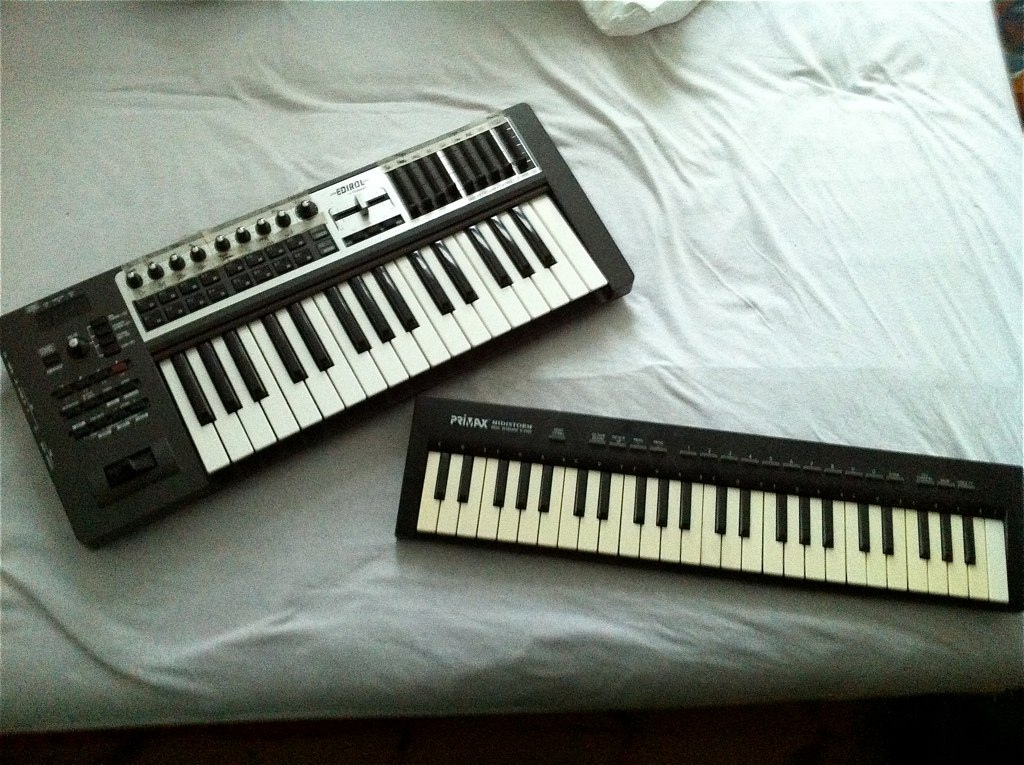
The usual misunderstanding is about what the connection carries. The MIDI Association describes MIDI as performance instructions rather than recorded audio, and playback needs a device or software instrument that generates the sound [S1]. Many USB controllers have no sound engine of their own, so they depend entirely on whatever the computer is hosting.
Detection is also a weaker signal than it looks. When a DAW lists your controller, that shows the computer has recognized the device, not that note messages are flowing or that any sound is being routed. One Reddit anecdote, which we saw only as a search excerpt, describes exactly this: a new controller appeared in the software's device list, an empty project produced no piano sound, and the user assumed extra hardware was needed [R1]. We cannot verify that setup or how it was resolved, but it is a useful picture of the gap this guide works through.
- Recognition proves the device is seen, not that notes arrive or sound plays.
- Test the chain in order: notes, instrument, routing, track, output.
- Rule out software stages before assuming you need new hardware.
Step 1: Verify MIDI Input Activity
Confirm that pressing keys produces actual note events. A blinking activity light is not enough on its own, because generic activity can come from clock, controller movements or background messages rather than notes. Use your DAW's event or MIDI monitor, or an operating-system MIDI utility, and press single keys while watching for Note On and Note Off messages. Note which channel they arrive on; you will need it in Step 3. Your DAW's manual will say where its monitor lives.
If no note events appear when you press keys, the problem is upstream of any instrument. Check that the controller is enabled as an input in the DAW's preferences, not just listed, then check the cable, USB port and the controller's power. If note events do appear, the keyboard and driver path are delivering notes, and you can stop reinstalling drivers or swapping cables for now.
- Watch for Note On and Note Off specifically, not just a flashing indicator.
- Record the channel the notes arrive on.
- Try another port or cable only if key presses produce no note events.
Step 2: Insert a Working Software Instrument
An empty project has nothing to make sound. Because MIDI is only instructions [S1], you need an instrument track hosting a virtual instrument such as a piano, synth or sampler. Start with an instrument bundled with your DAW rather than a third-party plugin, which removes licensing, installation and plugin-scanning variables.
Pick a plain patch with an immediate sound, such as a basic piano or organ, and avoid slow-attack pads or effect-dependent presets. Many instruments have a clickable on-screen keyboard. If clicking it makes sound but your hardware keys do not, the instrument and audio output are working, and the gap lies in routing or track settings.
Step 3: Route the Controller to the Intended MIDI Channel
Software instrument routing has two parts: which input the track listens to, and which channel it accepts. Many DAWs default to accepting all devices and channels, but older projects or templates may restrict a track to one port or channel. If your notes arrive on channel 1 and the track only accepts channel 2, nothing reaches the instrument.
Set the track input to your controller, or to all inputs while testing, and compare its channel setting with the channel you saw in the event monitor. The controller's manual is the authority on changing its transmit channel; do not guess at button combinations that might trigger a factory reset.
- Match the track's receive channel to the channel shown in the monitor.
- Check multitimbral instruments for per-part channel settings.
Step 4: Arm or Monitor the Instrument Track
Many DAWs pass live MIDI to an instrument only when its track is selected, record-armed or set to input monitoring. The rule varies by program and preferences, so check your DAW's documentation. Playing while a different track is selected is an easy way to end up with silence.
Select the instrument track, enable arm or monitoring if your DAW uses them, and confirm the track is not muted and no other track is soloed. Watch the track meter while playing. If it moves but you hear nothing, audio is being generated and the output stage is next.
Step 5: Check Audio Output Device and Master Level
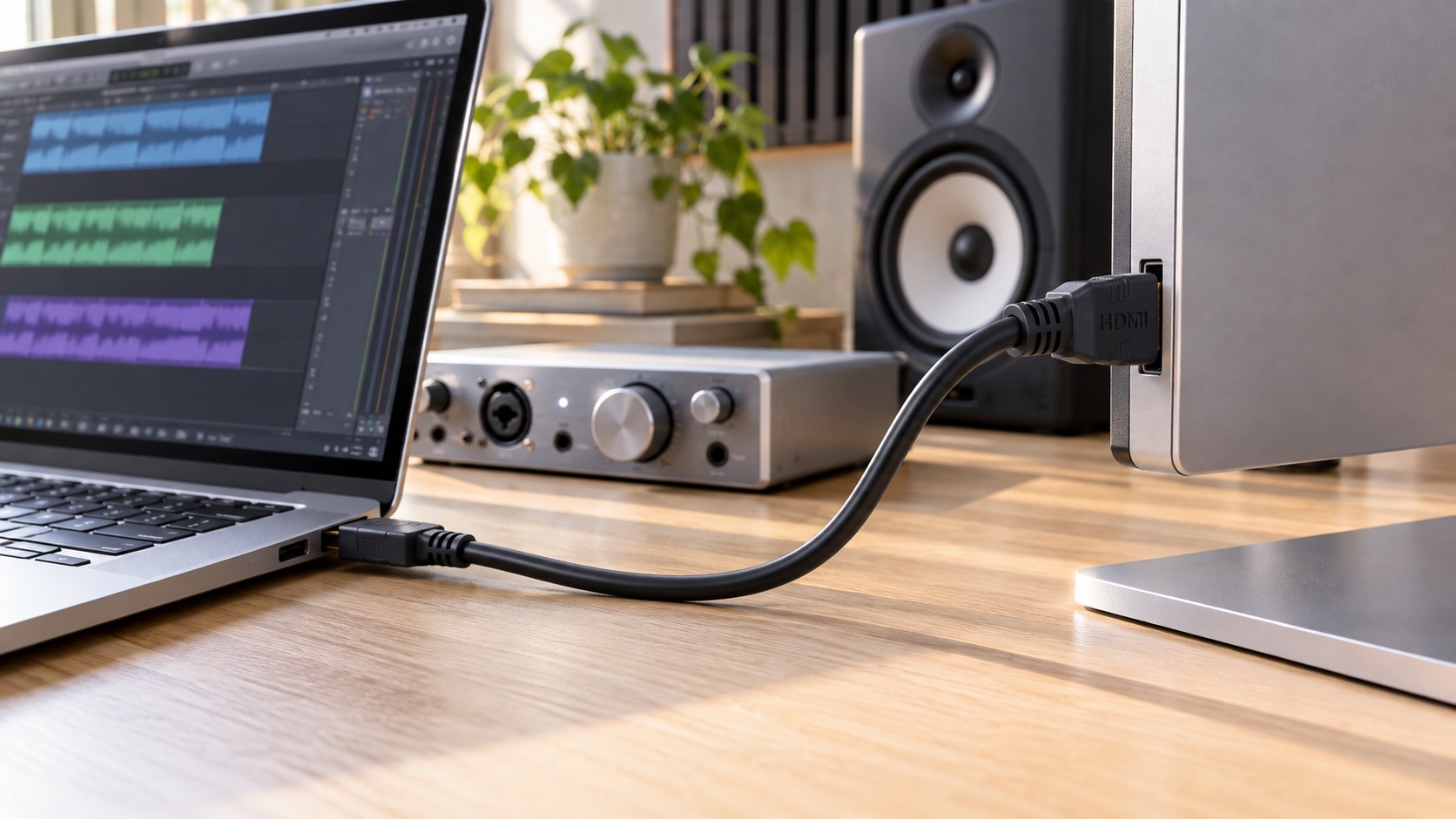
The DAW's audio preferences choose which device receives sound: built-in speakers, headphones, an interface or an HDMI display. After hardware changes, a DAW may still point at a disconnected interface or a monitor with no speakers. Confirm the selected device is the one you are listening through and that the track feeds the master bus.
Check levels in order: instrument volume, track fader, master fader, the operating system's volume for that device, and physical knobs on speakers or headphones. Turn speakers down before raising software levels so a sudden loud signal does not hit your ears. If an interface is involved, its monitor or mix controls are another place sound can vanish.
- Match the DAW output device to what you are actually hearing.
- Lower speaker volume first, then raise software levels gradually.
Step 6: Save a Minimal Working Template Before Adding Plugins
Once you hear sound, save the project as a template with only the bundled instrument, correct input and channel, monitoring enabled and the right output device. This is your known-good reference. If a later project goes silent and the template still plays, the hardware chain is fine and the new project's settings or plugins are responsible.
Add third-party plugins one at a time afterward. If sound disappears after one addition, you know where to look. This controller setup habit takes minutes and can save a long session of guesswork.
Hypothetical Worked Example
Hypothetical scenario, not a real case: a home producer connects a new 49-key USB controller. The DAW lists it, but keys do nothing. In the event monitor, each key press shows Note On and Note Off messages on channel 1, so notes are arriving. She loads the bundled piano on an instrument track and clicks its on-screen keys, but hears nothing. The track meter moves, so audio exists. Her output is set to an HDMI monitor without speakers.
She switches output to her headphones, lowering their volume first. On-screen clicks now sound, but hardware keys still do not. The track input is locked to channel 10 from an old drum template. She sets it to all channels, plays, hears piano, and saves the setup as a template. Nothing needed to be bought.
Red Flags and Buying Decisions: How to Verify
Be wary of advice that jumps straight to a purchase. An audio interface can help with latency and connections, but recognition without sound does not by itself show you need one, and the Reddit anecdote shows how natural that assumption is [R1]. Before buying, confirm that a bundled instrument still fails through your computer's own output after the steps above.
Watch for deceptive help: drivers offered from sites other than the manufacturer's, utilities promising to fix every MIDI problem, and paid fixes pushed in comment threads. Get drivers and firmware only from the manufacturer's official support page and match the model number exactly. If a seller insists an adapter is required, confirm with the manual or manufacturer support.
- Do not buy an interface until a bundled instrument fails on a verified output.
- Treat forum fixes as leads to verify, not instructions.
When Escalation Makes Sense
Contact the controller manufacturer if key presses produce no note events on two different computers or ports, if the device disconnects intermittently, or if a firmware update fails. Contact your DAW developer if a fresh project with a bundled instrument shows note events and a moving meter but stays silent on a verified output. Include your operating system version, DAW version and what you have ruled out.
Do not open the controller's casing or attempt hardware repairs yourself; it carries risk and may affect warranty coverage. For damaged or in-warranty units, follow the manufacturer's service process or use a qualified technician.
Your next steps
- Press single keys and confirm Note On and Note Off events, and their channel, in an event monitor.
- Enable the controller as a MIDI input in the DAW preferences.
- Create an instrument track with a bundled software instrument and a simple patch.
- Set the track input to your controller or all inputs, and match the channel you observed.
- Select the track, enable record arm or input monitoring, and check mute and solo.
- Confirm the DAW audio output device matches your speakers or headphones.
- Check instrument, track, master, system and hardware levels, with speakers turned down first.
- Save the working setup as a minimal template before adding third-party plugins.
- Download drivers or firmware only from the manufacturer's official support page.
Questions that come up next
Do I need an audio interface to hear my MIDI keyboard?
Not necessarily. MIDI carries instructions, and an instrument such as a software synth generates the sound [S1]. Your computer's built-in output or headphone jack can often play that sound. An interface may help with latency or connections, but first test a bundled instrument through your current output. If that works, the silence was a setup issue, not missing hardware.
Why does my keyboard show activity but the track stays silent?
First check what the activity is. A flashing light may reflect clock or controller data, so confirm in an event monitor that key presses create note events and note their channel. If they do, check downstream: the track may lack an instrument, use the wrong input or channel, be unarmed, muted, or overridden by a solo elsewhere. Then check the output device and levels.
Should I trust Reddit fixes for MIDI problems?
Use them as leads, not authority. Reddit posts describe individual experiences that are not independently verified [R1]. A fix that worked for one person may not match your DAW, operating system or controller. Compare suggestions against your manufacturer's manual or DAW documentation, and avoid downloading drivers or utilities linked in threads instead of from official sites.
Sources & further reading
Community discussions identify lived problems; they do not establish technical or legal requirements. Primary references support the specific claims cited above.
- R1 / COMMUNITY DISCUSSIONMidi keyboard won't make sound ↗
- S1 / PRIMARY REFERENCEMIDI Association: About MIDI, Overview ↗