Why the hum appears only when the display is connected
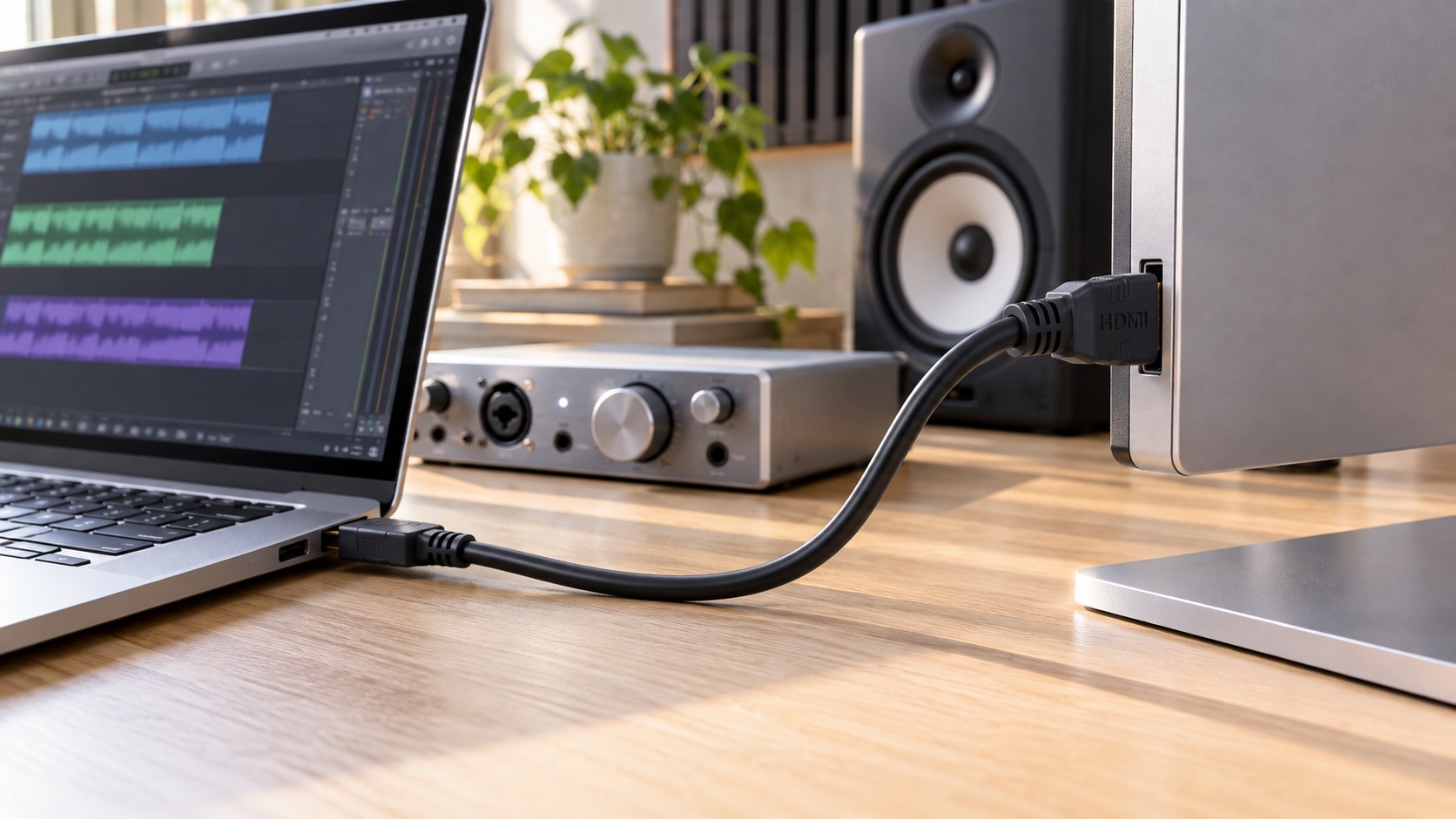
Many home studios run into the same pattern. The monitors are quiet with just the laptop and audio interface connected. Then an external display goes in over HDMI, and a hum or whine starts. In one Reddit post, a user described noise that appeared when HDMI and the interface were connected together and disappeared when the display path was removed [R1]. That is a single first-person anecdote, not verified testing, and it says nothing about how common the problem is. It is still a useful clue about where to start looking.
The usual explanation goes like this. The laptop, the display and the interface each have their own route to power and to each other. Once all of them are joined, the shared ground connections can carry small unwanted currents, and the monitors amplify those currents into audible noise. Focusrite's support article treats hum as something to diagnose. Its steps include testing other computers and locations, using approved power supplies, and using balanced interconnections [S1]. Keep in mind that not every high-pitched noise is a ground loop. A failing supply, interference or a speaker fault can sound much the same.
Draw every audio, USB, display and power connection
Before you buy anything, sketch your setup on paper. Include the laptop and its charger, the audio interface, each monitor, the display, and any hubs or docks. Then draw every cable: USB, HDMI, audio, and each power cord, including which outlet or power strip it uses.
The drawing shows you where loops can form. Devices on outlets spread around the room that are also joined by HDMI and USB can create several paths at once. You are not judging the wiring here. You are building a map so that every later test has a clear purpose.
- Mark which devices have three-prong plugs and which have two-prong plugs
- Note any dock, hub or adapter in the HDMI or USB path
- Note whether each power supply is the original or an approved replacement
- Record when the hum started and what changed around that time
Change one connection at a time
Start from the setup that is quiet, then add one connection at a time. Listen at the same monitor volume after each change, and write the result on your drawing. If you change two things at once, you can no longer tell which one caused the difference.
Some useful comparisons: run the laptop on battery and then on its charger, try a different HDMI cable, and try a different display port or adapter. Focusrite also suggests trying another computer or another location [S1]. If the hum follows the gear to another room, the equipment chain becomes the stronger suspect. If it happens in only one room, the building power deserves a closer look. Use only normal plugs and cables, and leave every protective ground connection in place.
Test known balanced outputs and cables
Balanced connections are designed to reject much of the noise that gets picked up along a cable, and Focusrite lists them among its diagnostic steps [S1]. Check the manuals to confirm that your interface outputs and your monitor inputs both support balanced signals. A TRS cable only helps when both ends are actually balanced. Adapters to RCA or TS can quietly turn the connection unbalanced.
If you have one cable you know is balanced and in good condition, swap it onto one speaker and compare the two sides. If the hum drops clearly on that side, cabling is part of the story. If nothing changes, treat the result as inconclusive. The noise could still come from an interface output, a monitor input, or a level of interference that is more than the connection can reject. Don't conclude that USB or HDMI is to blame yet. Keep isolating one connection at a time.
Compare headphones and speaker paths
With the display connected and the hum present, plug headphones into the interface. If the headphones are quiet but the monitors hum, look first at the outputs, the cables and the way the speakers are powered. If both hum, the noise may already be inside the interface or arriving through the computer connection. That is a direction for more testing, not a final verdict.
Next, test each monitor on its own with the other one disconnected. A single speaker that hums even with the display unplugged may have a fault rather than a loop. In that case, contact the manufacturer or an authorized repair shop. Do not open a mains-powered speaker yourself.
Hypothetical worked example
This is a hypothetical, simplified scenario, not a real case. A producer has a laptop on its charger, a USB interface, two powered monitors on a desk power strip, and a display plugged into a wall outlet across the room. A whine starts when the HDMI cable goes in. On battery power the whine gets quieter but doesn't stop. Headphones on the interface stay quiet.
The quiet headphones point toward the output and speaker side. The partial improvement on battery suggests the charger path plays a role. The manuals show balanced outputs, but the producer has been using unbalanced adapters. Switching to proper balanced cables and plugging the display into the same power strip removes the whine. In another version of this story, the hum stays. Then the next step would be to ask the manufacturers about isolation they support, never to modify a plug.
Use manufacturer-supported isolation or repair
If testing keeps pointing to the USB or HDMI path, isolation may break the unwanted connection without touching safety earth. Focusrite separates signal-ground remedies from defeating the protective earth [S1]. Before you buy an isolator, ask the interface or display maker whether they support one for your model. Also ask whether it affects data rate, display resolution or warranty.
Each option has tradeoffs. An isolator adds cost and one more part that can fail. A warranty repair takes time, but it fixes a real fault. Rearranging cables and outlets costs nothing, so do it first.
Red flags, deceptive fixes and how to verify
The most dangerous fix you may come across is defeating the protective earth. That includes ground-lift adapters on mains plugs, snapped-off ground pins, and opened power supplies. These steps can remove protection that matters if a fault ever makes a chassis live. Stop trusting any listing, video or post that recommends them.
Be skeptical of products sold as universal hum cures or guaranteed fixes. Check every claim against the manufacturer's documentation, and ask the seller exactly what the product does. Community stories, including the thread cited here [R1], are clues to test, not proof that the same fix will work for you.
- Refuse any fix that removes or bypasses a ground pin
- Confirm with the manufacturer that replacement power supplies are approved
- Keep receipts and test notes in case you need warranty service
When to escalate to a qualified electrician
Some results point beyond your gear: hum that changes from room to room, loose or warm outlets, tripping breakers, a burning smell, or an outlet tester that reports a fault. If you see any of these, stop and contact a licensed electrician. Rules for electrical work vary by city and state, so check with your local building authority about what applies where you live.
Bring your connection map and test notes to the visit, and explain which combinations hum and which do not. For equipment faults, go to the manufacturer's support line or an authorized service center rather than opening anything yourself.
Your next steps
- Draw every audio, USB, HDMI and power connection, including outlets
- Start from a quiet setup and add one connection at a time, writing down each result
- Compare the laptop on battery with the laptop on its charger
- Confirm in the manuals that both ends are balanced, then test a known-good balanced cable
- Compare headphones with each monitor on its own
- Ask the manufacturers about supported isolation before buying an isolator
- Never lift a protective earth, remove a ground pin or open mains equipment
- Call a qualified electrician if outlets, breakers or room-specific hum suggest a wiring problem
Questions that come up next
Is hum from an HDMI connection always a ground loop?
No. Hum that appears only when the display connects fits a ground-path explanation, but a failing supply, interference or a faulty speaker can sound similar. Test one change at a time, compare headphones with the speakers, and try another location before you buy anything or arrange a repair.
Can I use a ground-lift adapter on the power plug?
No. Defeating the protective earth on mains equipment removes an important safety protection. Focusrite's support material treats signal-ground remedies as separate from defeating protective earth. If your testing points to a loop, ask the manufacturer about supported isolation, and have a qualified electrician check any building wiring you suspect.
Will balanced TRS cables fix the hum?
Sometimes, but only if both ends really support balanced signals. Check the manuals first, then swap a known-good balanced cable onto one speaker. If nothing changes, the test is inconclusive. It does not prove where the noise comes from, so keep testing one connection at a time.
Sources & further reading
Community discussions identify lived problems; they do not establish technical or legal requirements. Primary references support the specific claims cited above.
- R1 / COMMUNITY DISCUSSIONStudio Monitors Emitting High Pitched Hum ONLY When Computer Monitor Is Connected? ↗
- S1 / PRIMARY REFERENCEFocusrite: Unwanted hum/noise in monitors ↗